Al hacer clic en "Aceptar todas las cookies", acepta que las cookies se almacenen en su dispositivo para mejorar la navegación del sitio, analizar el uso del sitio y colaborar en nuestros esfuerzos de marketing, tal como se describe en nuestra política de privacidad.
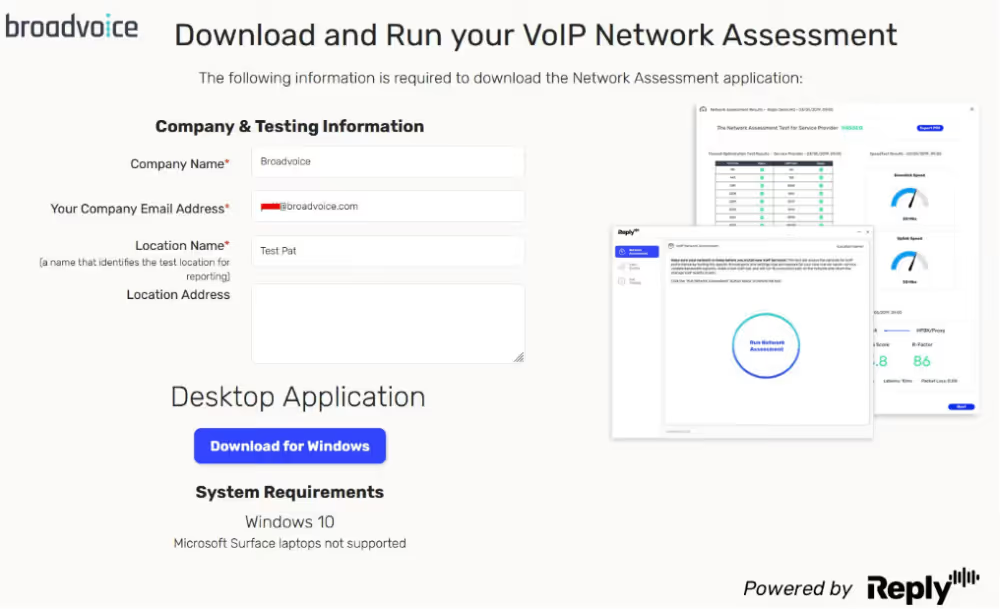
1. Fill out the Company & Testing Information fields (Company Name, Company Email, Location Name).
2. Click the blue "Download for Windows" button.
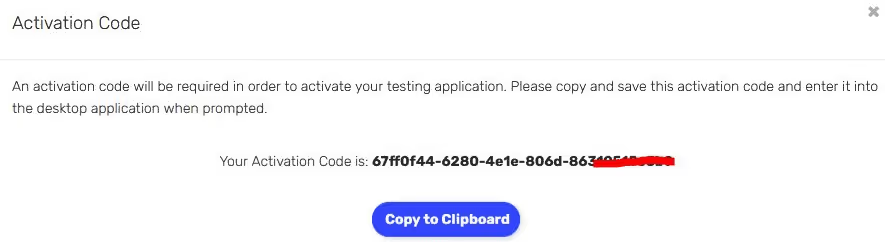
3. A pop-up window will appear with an activation code. Click the blue "Copy to Clipboard" button.
4. Once the Reply Cloud file is downloaded, open and install the .MSI file for Reply Cloud.
5. Upon completing installation of the file, it will open a pop-up window to enter the activation code.
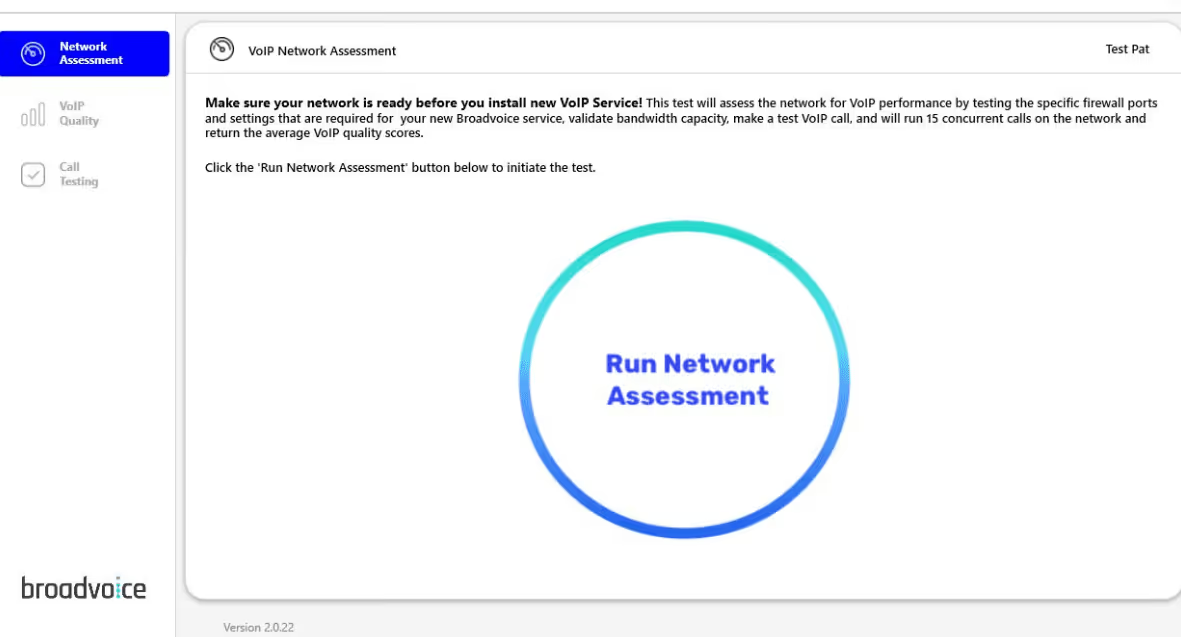
6. After entering the activation code and submitting, the pop-up window will change to say “Run Network Assessment” as an active button. Click here to run the Network Assessment test.
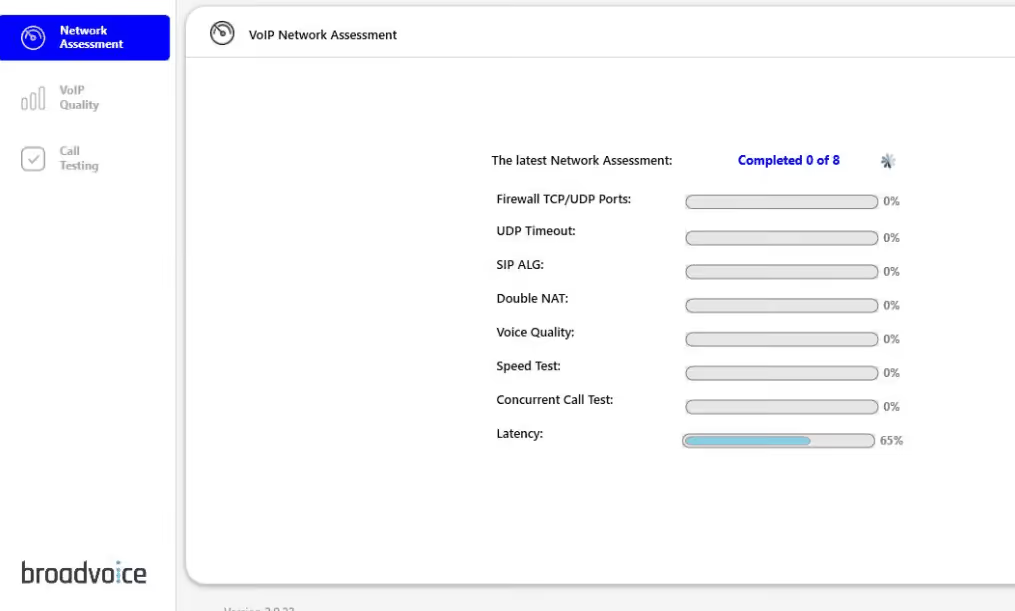
7. After the test has completed, running it will change to show the test results and there will be a blue “Export to PDF” button to export and share if needed.
*Note: Requires Windows 10 and MS Surface laptops are not supported.
¿Listo para transformar tu CX?
Únete a los miles de equipos que ofrecen experiencias excepcionales a sus clientes con Broadvoice.

.svg)